 erkemoz
Erkemoz - Auto Clicker User Guide
Step by step: holding keys down, pressing keys at an interval, and automatic clicking.
Installing and first start
- Download the installer with the download button on this page and run it.
- If Windows shows "Windows protected your PC" (SmartScreen), click "More info" → "Run anyway". This warning appears because the program isn't signed with a paid certificate yet.
- When setup finishes, open the program from the Start menu.
- Change the interface language from the “Language” menu in the top bar; there are 8 languages.
- The program checks for new versions by itself; when one is out, it asks and installs it in one click.
Holding keys down
Holds your run, walk or gather key down in games so you don't have to.
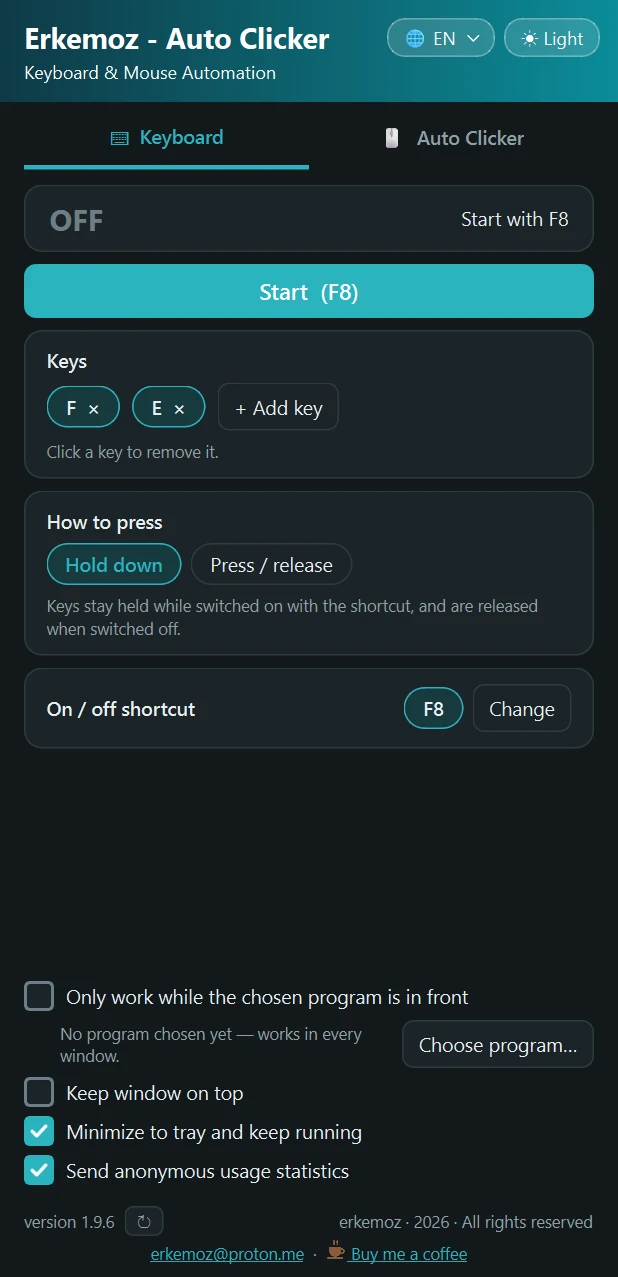
- Open the “Keyboard” tab. The “Keys” list starts with the F key.
- For another key, click “+ Add key”, then press the key you want to add. Click a key in the list to remove it.
- Under “Press mode”, choose “Hold down”.
- Switch to your game and press the shortcut (F8 by default). The keys stay held down; press the same shortcut again to release them.
Pressing keys at an interval
- Under “Press mode”, choose “Press / release”.
- Enter the time between presses in “Interval”. Enter a number in “How many times” or choose “Infinite ∞”.
- Start with the shortcut. The status card shows how many presses are done; it stops by itself when the count is reached.
- To change the shortcut, click “Change” next to “On / off shortcut” and press the new key combination (e.g. Ctrl + F8). Esc cancels.
Automatic clicking and combos
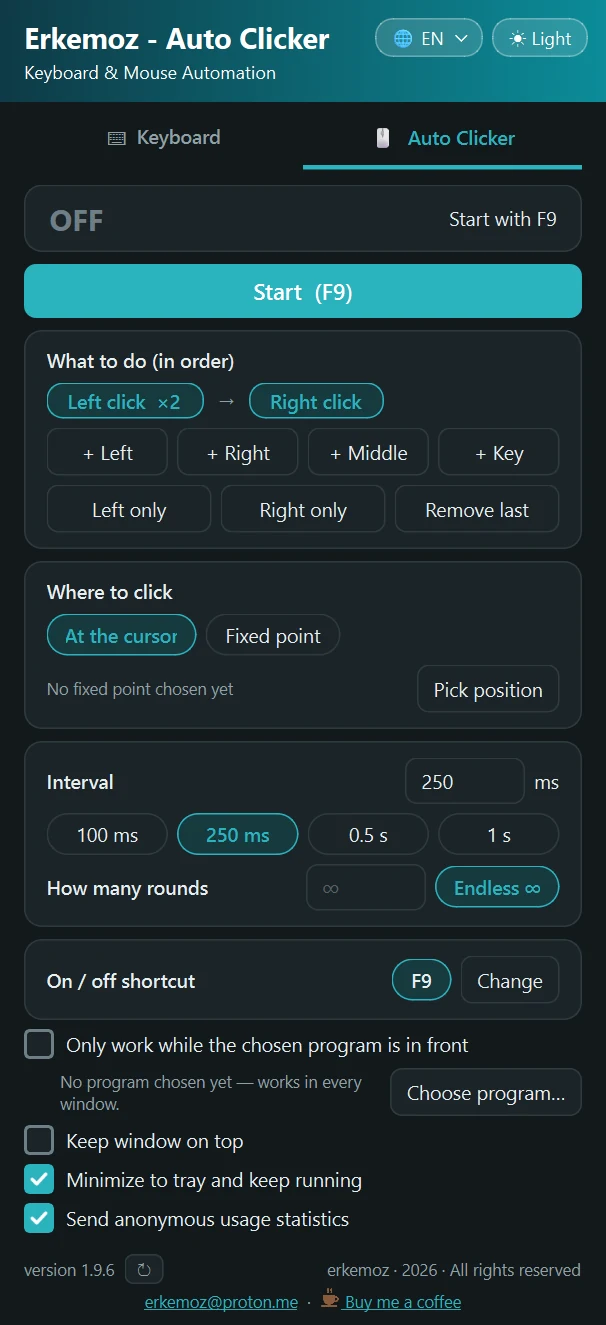
- Open the “Auto Clicker” tab. Under “Actions (in order)”, add steps in order with “+ Left”, “+ Right”, “+ Middle” or “+ Key”. “Left only” and “Right only” are quick presets; “Remove last step” removes a wrong step.
- Under “Where to click”, choose “At the cursor” or “Fixed point”. For a fixed point, click “Pick position”, move the mouse to the spot and wait for the countdown to end.
- Enter “Interval” and “How many rounds”, or choose “Infinite ∞”.
- Start with the shortcut (F9 by default); the same shortcut stops it.
Only in one game, and in the background
- Tick “Only run while the selected program is in the foreground” and pick the game's .exe with “Select Program”. When you switch to another window the tool waits, and it continues when the game is in front again.
- With “Keep window on top” on, the program window stays above other windows.
- With “Keep running in the system tray when minimized” on, minimizing sends the program to the tray next to the clock and the shortcuts keep working. To quit completely, right-click the tray icon and choose “Exit”.
Frequently asked questions
I press the shortcut but nothing happens in the game.
If the game runs as administrator, Windows doesn't let a non-administrator program send keys to it. Right-click the program and choose “Run as administrator”. Online games with anti-cheat may block keys sent by programs; don't use it in those games.
Does a key stay pressed when the program closes?
No. When the program closes, no key stays pressed.
Can a key from the key list be the shortcut?
No. If the key the tool presses were also the shortcut, the program would keep switching itself on and off; it doesn't allow this and warns you.
Does the program connect to the internet?
Only to check for new versions and for an anonymous usage counter you can turn off. The counter sends a random install number, the version, the language and whether the program is open; no keys, clicks, files or names. Untick “Send anonymous usage statistics” and no requests are made.

Find the tools useful?
They're free and will stay free. If one saved you some time, you can buy me a coffee — it helps keep new programs coming.