 erkemoz
Erkemoz - Channel Analytics User Guide
Step by step: connecting your Google account once, reading your channel data, recommendations and reports.
Installing and first start
- Download the installer with the download button on this page and run it.
- If Windows shows "Windows protected your PC" (SmartScreen), click "More info" → "Run anyway". This warning appears because the program isn't signed with a paid certificate yet.
- When setup finishes, open the program from the Start menu.
- Change the interface language from the “Language” menu in the top bar; there are 8 languages.
- The program checks for new versions by itself; when one is out, it asks and installs it in one click.
Google connection (once, about 5 minutes)
Want to try it first? “Explore Sample Data” lets you explore the program with made-up data.
- Create a new project at console.cloud.google.com.
- In “APIs & Services → Library”, enable “YouTube Data API v3” and “YouTube Analytics API”.
- On the “OAuth consent screen”, choose “External”, enter an app name and your own email, then click “Publish app”. If it stays in testing, Google drops the permission every 7 days.
- Under “Credentials → Create credentials → OAuth client ID → Desktop app”, download the JSON file.
- In the program, go to “Settings” → “Choose Client File” and pick the JSON file, then click “Connect Account” and allow access in the browser with the account that owns the channel.
Downloading and reading your data
- Click “Refresh Data” (F5); the program downloads your channel's data.
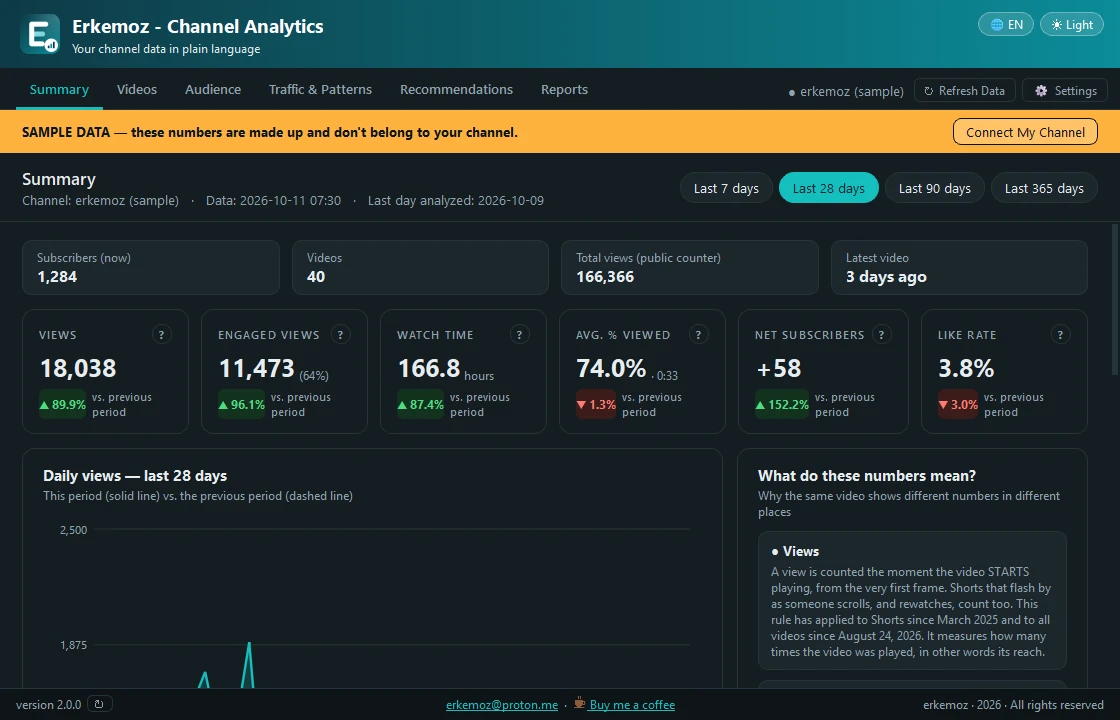
- The “Summary” page shows subscribers, videos and total views, six indicators, the change from the previous period and a daily chart. Pick the period (last 7, 28, 90 or 365 days); the choice applies to every page.
- YouTube processes analytics 1–3 days late, so the last days looking incomplete is normal. “What do these numbers mean?” explains the differences.
Videos, audience and traffic
- In “Videos” every video is one row with a grade within your channel (A, B, C, D). Click a column header to sort; double-click a row for the audience retention curve and a diagnosis.
- “Audience” shows age, gender, country, device, subscribed and non-subscribed viewers, and the share of each content type.
- “Traffic & Patterns” shows where viewers find you, which searches bring them, and which length, day, time and title features do better.
Recommendations and reports
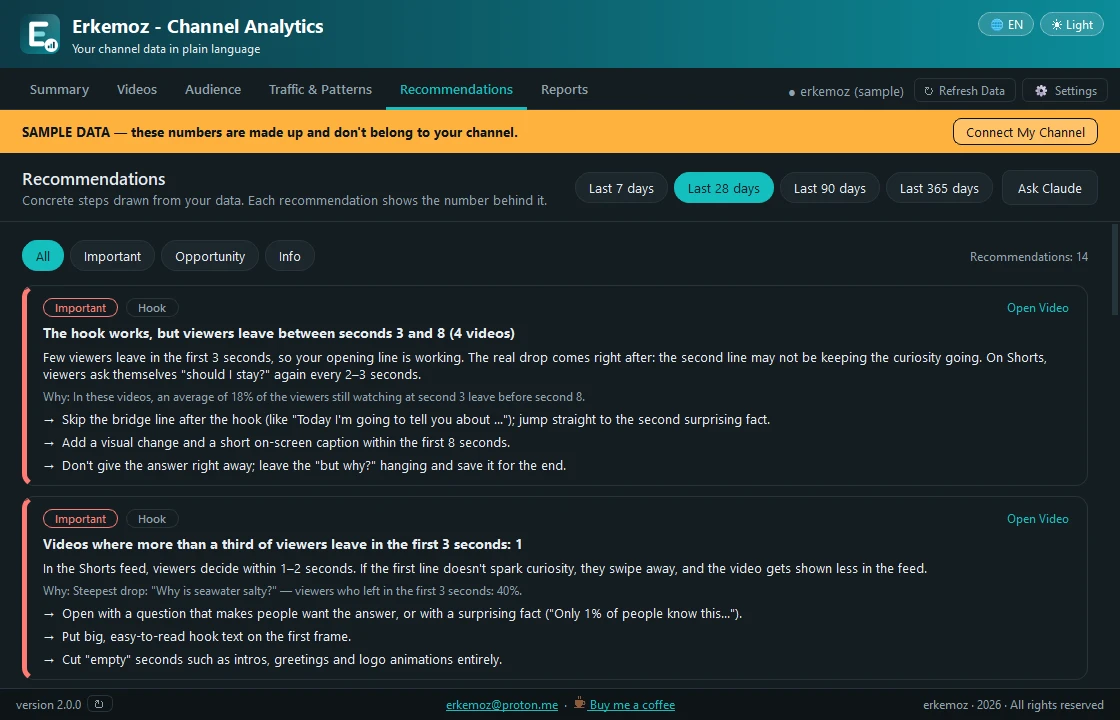
- In “Recommendations”, each recommendation shows the number it's based on; filter by “Important”, “Opportunity” and “Info”.
- “Ask Claude” copies all the numbers and recommendations to the clipboard, ready to paste into an AI assistant.
- In “Reports”, get your report with “Create Excel Report”, “Create PDF Summary” or “Save Claude Report (.md)”.
Frequently asked questions
Can the program change anything on my channel?
No. It asks Google for read-only access; it can't change anything on your channel.
Where does my data go?
Nowhere. Your data stays on your computer; the program talks only to Google's servers. The session key is protected with Windows encryption (DPAPI).
Why do I set up my own Google Cloud project?
So your data never passes through anyone else's server, and Google's free daily quota is yours alone; it's enough for normal use.
The connection drops every 7 days.
Your OAuth consent screen is still in “Testing”. Open the OAuth consent screen in Google Cloud and click “Publish app”.

Find the tools useful?
They're free and will stay free. If one saved you some time, you can buy me a coffee — it helps keep new programs coming.