 erkemoz
Erkemoz - PDF Toolkit User Guide
Step by step: merging, splitting, compressing, protecting and converting PDFs, and changing dates, amounts, stamps and signatures with Edit Text.
Installing and first start
- Download the installer with the download button on this page and run it.
- If Windows shows "Windows protected your PC" (SmartScreen), click "More info" → "Run anyway". This warning appears because the program isn't signed with a paid certificate yet.
- When setup finishes, open the program from the Start menu.
- Change the interface language from the “Language” menu in the top bar; there are 8 languages.
- The program checks for new versions by itself; when one is out, it asks and installs it in one click.
Using the tools
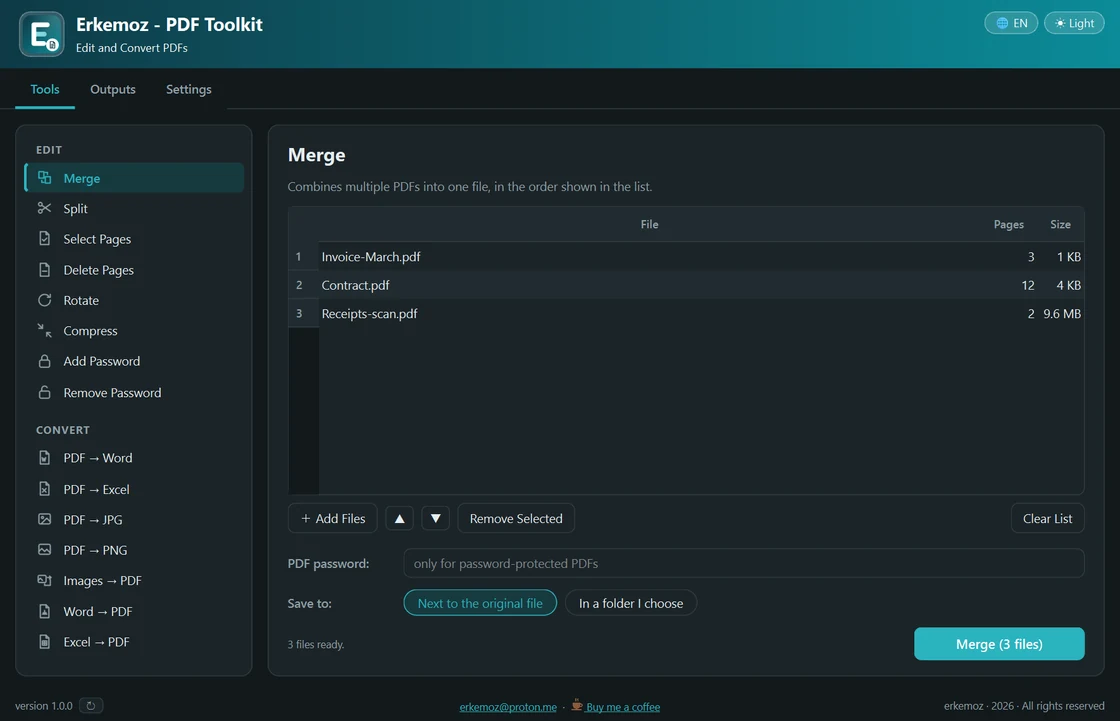
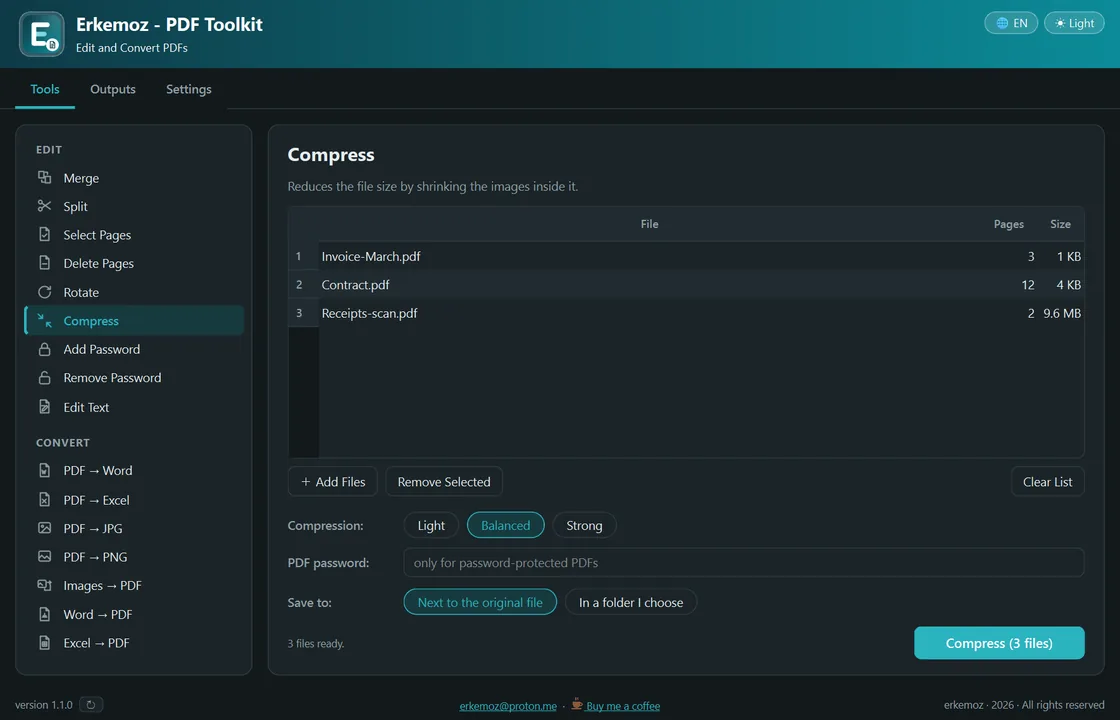
- On the “Tools” tab, choose a tool. The “Edit” group has “Merge”, “Split”, “Select Pages”, “Delete Pages”, “Rotate”, “Compress”, “Add Password” and “Remove Password”; the “Convert” group has “PDF → Word”, “PDF → Excel”, “PDF → JPG”, “PDF → PNG”, “Images → PDF”, “Word → PDF” and “Excel → PDF”.
- Drag files onto the drop area or click to choose them. In “Merge” and “Images → PDF”, drag to change the order.
- Fill in the options if needed: “Pages” (e.g. 1-3, 5, 8-), rotation, compression level (“Light”, “Balanced”, “Strong”), resolution or password.
- Under “Save to”, choose “Next to the original file” or “In a folder I choose” and click the button that starts the job. Your original file is never touched; every job creates a new file.
Edit Text: dates, amounts, stamps, signatures
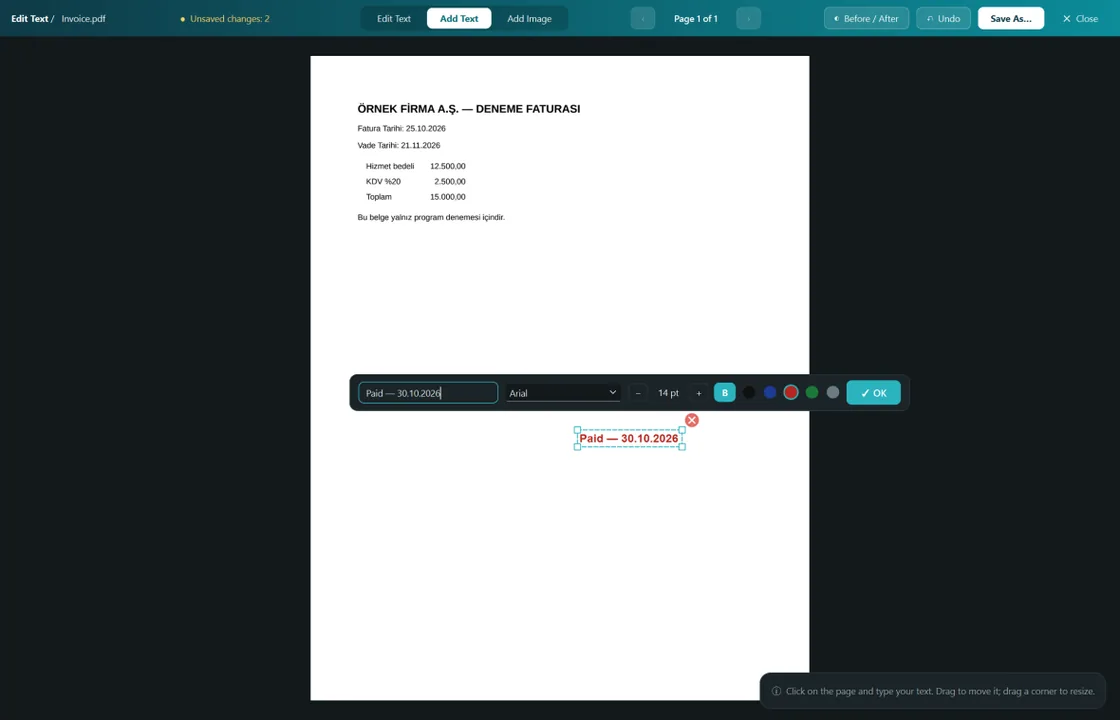
- Open “Edit Text” and drop a PDF or click “Open PDF”; the document opens full screen in its own window.
- In “Edit Text” mode, click the text you want to change, type the new text and press Enter. Font, size, colour and position stay the same.
- “Add Text” puts text anywhere on the page (font, size, bold, colour); “Add Image” adds a stamp, signature or logo (transparent PNG supported). Drag what you add, resize it from a corner, remove it with ×.
- Zoom in on small text with Ctrl + mouse wheel or use “Fit Page”. Hold “Before / After” to see the original; Ctrl+Z undoes.
- Save to a new file with “Save As”; the original is never overwritten.
Converting and outputs
- “PDF → Word” needs Microsoft Word on your computer. “Word → PDF” and “Excel → PDF” need Microsoft Office or the free LibreOffice.
- “PDF → Excel” exports tables; each page becomes its own worksheet.
- Files you create stay on the “Outputs” tab; reach them with “Open” or “Show in Folder”. “Clear List” doesn't delete files.
Frequently asked questions
Are my files sent to a server?
No. Everything happens on this computer; files are never sent to any server.
Can I change the text in a scanned PDF?
No. A scanned page holds an image, not text; “Edit Text” works only on PDFs with real text.
Why didn't a letter I typed appear?
A font embedded in a PDF may contain only the letters used in the document; missing letters can't be written, and the program tells you which one.
What happens if I edit an e-signed PDF?
The e-signature breaks; the program warns you first.
What if I forget the password I set?
A PDF protected with “Add Password” can't be opened without the password, and the password can't be recovered. Write it down somewhere.

Find the tools useful?
They're free and will stay free. If one saved you some time, you can buy me a coffee — it helps keep new programs coming.