 erkemoz
← Erkemoz - Video Downloader
Erkemoz - Video Downloader User Guide
Step by step: downloading videos, audio, playlists and channels, and choosing quality, format and subtitles.
Up to date for version v1.0.0
Download for Windows
Installing and first start
- Download the installer with the download button on this page and run it.
- If Windows shows "Windows protected your PC" (SmartScreen), click "More info" → "Run anyway". This warning appears because the program isn't signed with a paid certificate yet.
- When setup finishes, open the program from the Start menu.
- Change the interface language from the “Language” menu in the top bar; there are 8 languages.
- The program checks for new versions by itself; when one is out, it asks and installs it in one click.
Downloading a video
- On first start the program prepares its download engine once (about 220 MB); wait for it to finish.
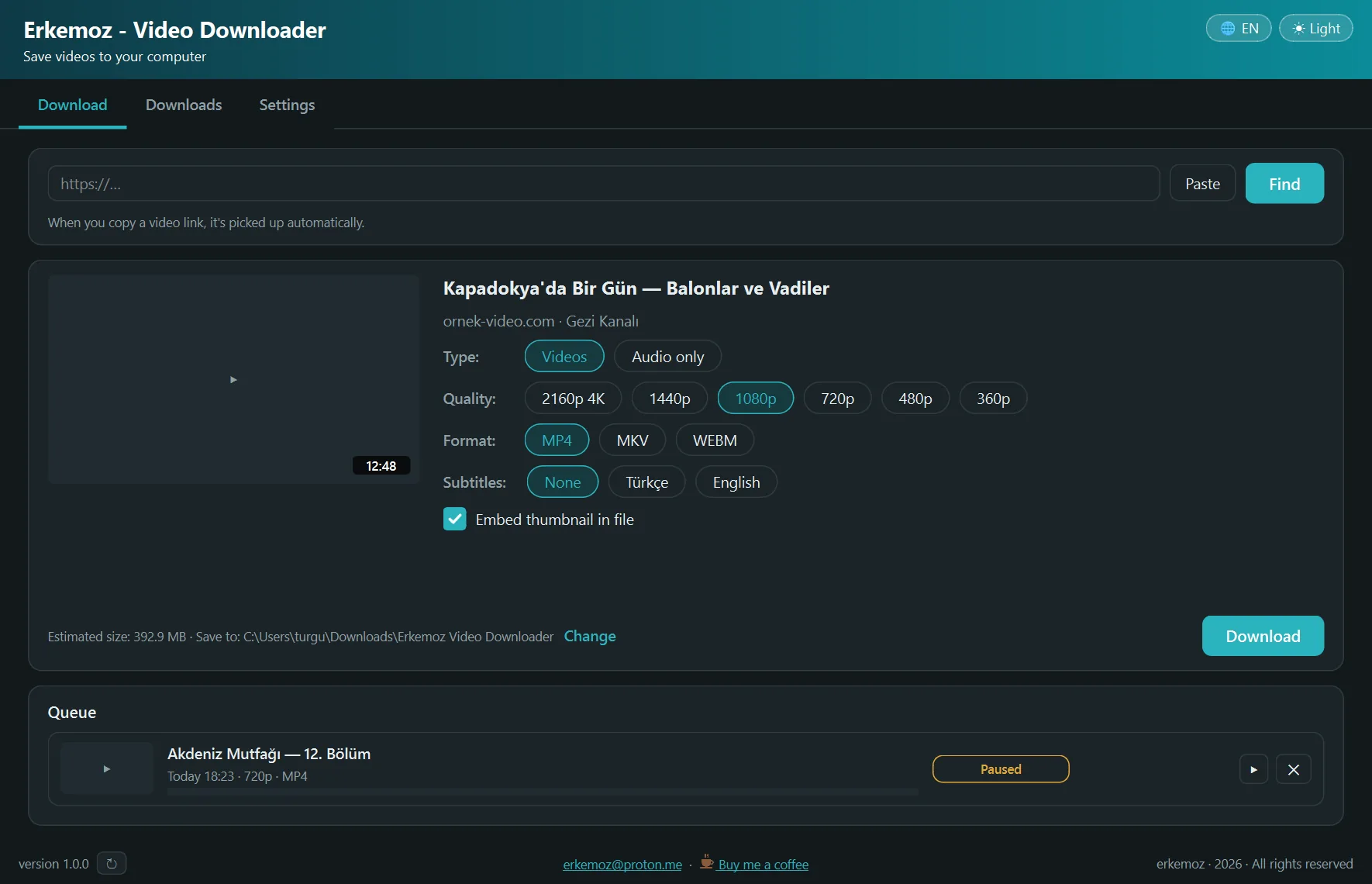
- Copy the video's link. The program catches copied links by itself and asks; click “Find”. Or paste the link into the box (“Paste”) and click “Find”.
- For “Type” choose “Videos” or “Audio only”; then set “Quality”, “Format” and “Subtitles”. Tick “Embed thumbnail in file” if you like.
- Check the estimated size and the save location, then click “Download”.
Playlists and channels
- Give a playlist or channel link and the videos come as a list.
- Choose with “Select all” or “None”; videos you downloaded before show “Already downloaded”.
- Click “Download Selected (N)”; the videos are added to the queue.
Downloads
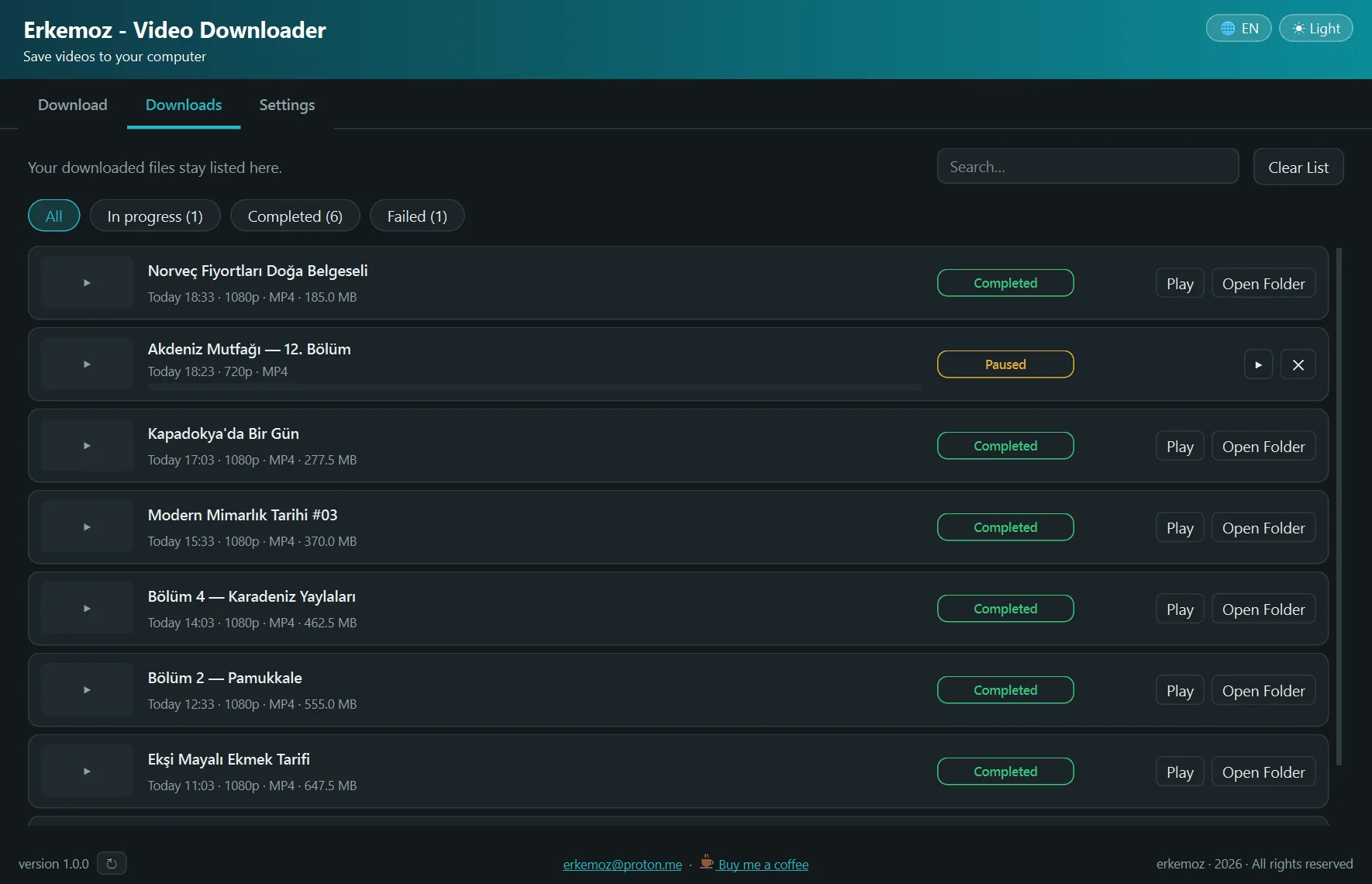
- On the “Downloads” tab, running, finished and failed downloads are shown separately; search to find one.
- If you close the program, running downloads are paused; reopen it and continue from “Downloads”.
- “Clear List” only clears the list; downloaded files are not deleted.
Settings and the browser extension
- In “Settings”, change the “Download folder”, the “Simultaneous downloads” count and the “File name” pattern.
- Install the browser extension with “Install the extension” to send links from sites other than YouTube with one click. On YouTube, copying the link is enough.
- For unprotected videos you watch with a membership, choose your browser under “Sites that require sign-in”; the program uses that browser's session. While Chrome or Edge is open the session may not be readable; close the browser and try again.
- If downloads from a site break, click “Update Engine” in “Settings”; the engine is also checked once a day.
Frequently asked questions
Does it download from sites like Netflix?
No. The program refuses protected (DRM) content; only public or unprotected content is downloaded.
Can I get just the MP3?
Yes. For “Type” choose “Audio only”; you can save as MP3, M4A or OPUS.
Why does it download something on first start?
The download engine (yt-dlp, ffmpeg, deno) isn't bundled in the installer; on first start it is downloaded once, only from GitHub, and verified with SHA-256.
How may I use the videos I download?
Use downloaded content only in permitted ways; respecting copyright and each site's terms of use is your responsibility.

Find the tools useful?
They're free and will stay free. If one saved you some time, you can buy me a coffee — it helps keep new programs coming.